
Intro
If you play Roblox on a Windows PC and want to try script execution without paying anything or working through a key checkpoint, Xeno Executor is one of the first names you will come across. It has built a steady following among new users precisely because it keeps the starting process short: install it, attach it to a running game, and run a script.
That simplicity is also its defining trade-off. Xeno is an external executor, which means it works alongside the Roblox client rather than embedding itself deep inside it. For everyday scripts and casual use, that approach is usually enough. For heavier, more advanced scripts, it may not cover everything a fully internal tool can. Knowing that limit before you install saves frustration later.
This guide walks through what Xeno is, how to download and set it up on Windows, how to run your first script, and the problems users hit most often — with honest notes on safety throughout. If Xeno turns out not to fit your setup, the comparison near the end points you to alternatives such as Solara Executor, Delta Executor, and Wave Executor, and you can browse the full list on the All Executors page.
What Is Xeno Executor?
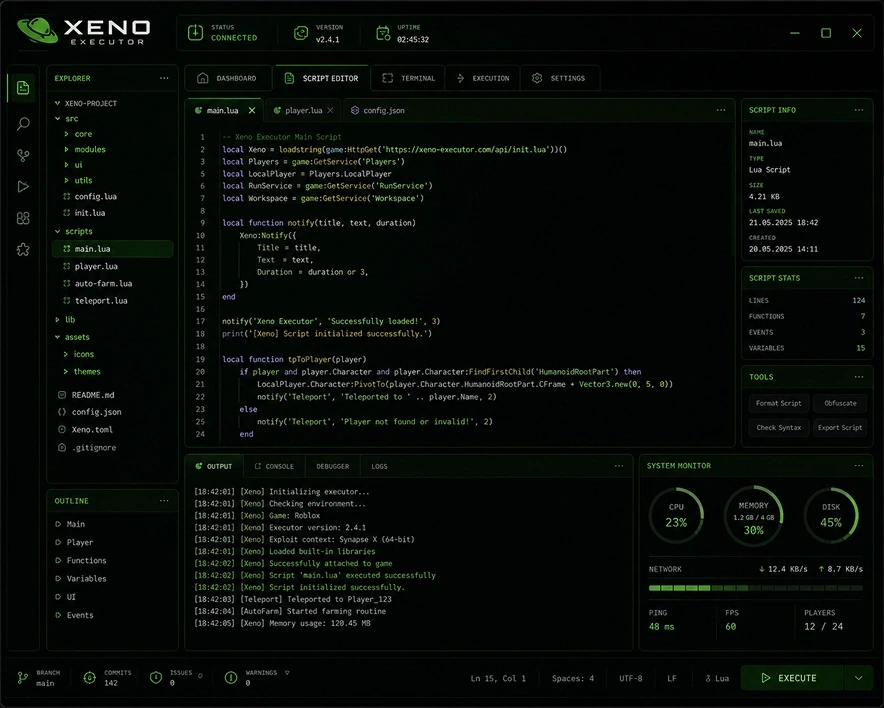
Xeno Executor is a free, open-source script executor for Roblox on Windows. In plain terms, it is a separate program that connects to a running Roblox game and lets you run custom Luau scripts inside that game session. Those scripts can automate repetitive actions, change how parts of the game behave, or add on-screen tools, depending on what the script itself was written to do.
Because the project is open source, its code is publicly available for anyone to inspect. That transparency is unusual in this space, where most executors are closed tools distributed as compiled downloads, and it is one of the main reasons Xeno earns trust from cautious users. The tool is built around a native Windows injector with a clean in-game interface, and it can attach to more than one open Roblox client at a time, so running different scripts in separate game windows is possible without extra software.
Xeno is designed for the standard Roblox client on Windows. It is not a mobile tool, it is not a Roblox Studio plugin, and it does not change your Roblox account or your installed games permanently — it only affects the game session it is attached to, while that session is running.
Why Choose Xeno Executor? (And the Honest Safety Notes)
The strongest case for Xeno is its low barrier to entry. There is no payment, no key page, and no daily renewal ritual. For someone who only wants to test whether script execution is for them, that removes the two annoyances that push many beginners away from other free tools.
The open-source nature is the second reason. When a tool’s code can be reviewed publicly, hidden behaviour is much harder to conceal, and community members can flag problems early. Xeno also stays light on system resources, so it runs comfortably on ordinary mid-range PCs rather than demanding a high-end machine.
Now the honest part, which matters more than any feature list. No executor can honestly be called completely safe or undetectable. Xeno’s own project documentation notes that it can be detected by Roblox’s anti-cheat systems, and using any third-party executor goes against Roblox’s Terms of Service. That means there is a real risk of warnings or account action, including bans, especially if you use it on an account you care about. The sensible precautions are the same ones experienced users repeat: test on an alternate account first, avoid aggressive or disruptive scripts in public servers, keep the tool updated after every Roblox patch, and only obtain it from a source you have verified yourself. Antivirus software will very often flag executor files; that is common for injection tools and is usually a false positive, but you should still scan anything you download and never disable your protection blindly for a file from an unknown site.
How to Download Xeno Executor for Windows
Xeno is a Windows-only tool, so there is a single download path.
- Confirm you are on a Windows 10 or 11 PC (64-bit) with Roblox already installed and working.
- Install the .NET Desktop Runtime 8.0 and the latest Visual C++ Redistributable (x64) if they are not already on your machine. Xeno needs both, and missing them is the most common cause of launch errors.
- Create a dedicated folder for Xeno, and add that folder as an exclusion in your antivirus software so the injector files are not quarantined mid-install.
- Obtain the Xeno package from the verified official source linked by this site’s download button, and save it to the folder you prepared.
- Extract the archive with a standard tool such as WinRAR or 7-Zip, keeping all extracted files together in that same folder.
- Do not run Xeno from inside the archive or from your Downloads folder with files scattered elsewhere — a single clean folder avoids most “file not found” problems later.
How to Install Xeno Executor
Xeno does not use a long installer wizard. Once extracted, the program is essentially ready to run, with a few preparation steps that matter.
- Right-click the main Xeno program file and run it as administrator. This is required for the injector to attach reliably.
- If Windows SmartScreen or your antivirus blocks the first launch, check that the file came from the verified source, then allow it through the exclusion you set earlier rather than turning protection off entirely.
- If Xeno reports a missing component on launch, install or repair the .NET Desktop Runtime 8.0 and the Visual C++ Redistributable, then restart Xeno.
- Keep Xeno closed while Roblox updates. After a Roblox client patch, wait for a matching Xeno update before attaching again — attaching an outdated build to a new client is the most common cause of failed injection.
How to Use Xeno Executor / Execute Scripts
- Start Roblox, join a game, and wait until your character has fully loaded into the world.
- Open Xeno and click Attach, then wait for the status to show that it has connected to the game client.
- If you run several Roblox windows, check that Xeno has attached to the window you intend to use, since it can detect multiple clients.
- Paste your script into the editor, or open one from the built-in script hub, and review it briefly before running anything you did not write yourself.
- Click Execute. The script’s interface or effects should appear in the game shortly after.
- If nothing happens, check the console output inside Xeno for an error message — it usually points to the script, not the executor.
- To stop a script, use the script’s own toggle or close the game session; closing Xeno alone does not always stop a script that is already running in the client.
No script code and no script links are provided in this article. Only run scripts from sources you trust, and test unfamiliar scripts on an alternate account first.
How to Get the Key
Xeno Executor has no key system. There is no key page, no checkpoint, and no daily key to renew. Once Xeno is running and attached, you can execute scripts directly. If any site asks you to complete key steps or pay to “unlock” Xeno, it is not the genuine tool — step away from that page.
Features
- Completely free with no key system and no paywall for the core tool
- Open-source codebase that the community can inspect
- Native Windows injector built for fast, stable attachment
- Multi-instance support: attach to several open Roblox clients independently
- Built-in script hub for browsing ready-made scripts
- Clean in-game interface with an editor, console output, and attach controls
- Lightweight design that runs well on mid-range Windows PCs
- Regular updates following Roblox client patches
- Two interface builds reported by community sources: a newer redesigned interface and a lighter legacy layout
What’s New in the Latest Version
No verified changelog for v1.3.60 could be confirmed from a reliable source during this research, so no specific new features are claimed here. Community sources describe ongoing patch-following maintenance through 2026.
System Requirements
| Requirement | Windows |
|---|---|
| OS | Windows 10 / 11 (64-bit) |
| Processor | |
| RAM | |
| Storage | |
| .NET / runtimes | .NET Desktop Runtime 8.0; Visual C++ Redistributable (x64) |
| Root / jailbreak | Not applicable |
| Internet | Required for Roblox and script hub use |
Comparison: Xeno Executor vs Other Executors
| Feature | Xeno Executor | Solara Executor | Delta Executor |
|---|---|---|---|
| Platforms | Windows only | Windows (see Solara Executor) | Android, iOS, PC (see Delta Executor) |
| Price | Free | Free (see post) | Free (see post) |
| Key system | Keyless | Keyless (see post) | Key Required (see post) |
| Best for | Windows beginners who want a free, keyless start | Windows users wanting a keyless alternative | Players who need mobile and desktop coverage |
| Script support | Broad support for everyday scripts; some advanced scripts may be limited by its external design | Broad everyday support (see post) | Broad support across platforms (see post) |
| Open source | Yes | See post | See post |
This comparison is qualitative only. No compatibility percentages or user counts are claimed, because no verifiable source supports a single current figure.
Pros and Cons
| Pros | Cons |
|---|---|
| Free with no key system or daily renewal | Windows only — no Android, iOS, or macOS build |
| Open source, so the code can be publicly reviewed | External design limits some advanced scripts |
| Lightweight and beginner-friendly | Can be detected by Roblox anti-cheat; account risk remains |
| Multi-instance attachment built in | Needs .NET 8 and VC++ runtimes installed first |
| Built-in script hub | Must be updated after Roblox patches or attachment fails |
Common Problems & Fixes
| Problem | Fix |
|---|---|
| Xeno will not launch / missing DLL error | Install .NET Desktop Runtime 8.0 and the latest Visual C++ Redistributable (x64), then restart Xeno. |
| Antivirus deletes or quarantines Xeno | Add Xeno’s folder as an exclusion, re-extract the files, and scan the download from the verified source first. |
| Attach button does nothing | Run Xeno as administrator, join a game fully first, and make sure Roblox is not still on a loading screen. |
| Attachment fails right after a Roblox update | Wait for a matching Xeno update; do not force an outdated build onto a new client. |
| Script runs but shows errors in the console | The script itself is usually at fault — try a simpler script to confirm Xeno is working, then check the script’s own requirements. |
| Xeno attaches to the wrong game window | Close unneeded Roblox windows, or re-attach after focusing the game window you want to use. |
| Game crashes after executing a script | Stop the script, restart the game, and test the script alone on an alternate account before combining it with others. |
Final Verdict
Xeno is an easy recommendation for Windows users who want to start with script execution for free and without key friction, and its open-source nature makes it one of the more transparent choices available. It is not the right pick if you play on mobile or Mac, or if you need the deepest possible support for advanced scripts — in those cases Delta Executor or Wave Executor may fit better. Whatever you choose, treat account risk as real, test on an alternate account, and keep the tool updated.
FAQ
Q: Is Xeno Executor free?
A: Yes. Xeno is reported as a free executor across multiple sources, with no payment required for its core features.
Q: Does Xeno Executor need a key?
A: No. Xeno is keyless — there is no key page, no checkpoint, and no daily renewal to complete before executing scripts.
Q: Does Xeno Executor work on Android, iOS, or Mac?
A: No. Xeno is a Windows-only tool. Mobile and Mac players should look at alternatives such as Hydrogen Executor or MacSploit Executor.
Q: Is Xeno Executor safe to use on my main account?
A: No executor is risk-free, and Xeno’s own project notes flag detection by Roblox anti-cheat. Use an alternate account for testing, avoid disruptive scripts, and accept that account action is possible.
Q: Why does my antivirus flag Xeno?
A: Injection tools are routinely flagged because of how they interact with another program’s memory. This is often a false positive, but you should still verify your download source and scan the file rather than disabling protection blindly.
Q: Why does Xeno fail to attach after a Roblox update?
A: Roblox client patches frequently break executor attachment. The usual fix is to wait for a matching Xeno update and then retry, rather than forcing the old build.
Additional Details
- Description: Xeno Executor is a free, keyless, open-source Roblox script executor for Windows.
- Price: Free.
Leave a Reply